MFA (Multi-Factor Authentication)
You have the option to turn on extra security using multi-factor authentication (MFA) in your profile settings. IDEAS currently supports Temporary One-Time Password (TOTP) MFA, but not SMS MFA.
Turning on MFA
-
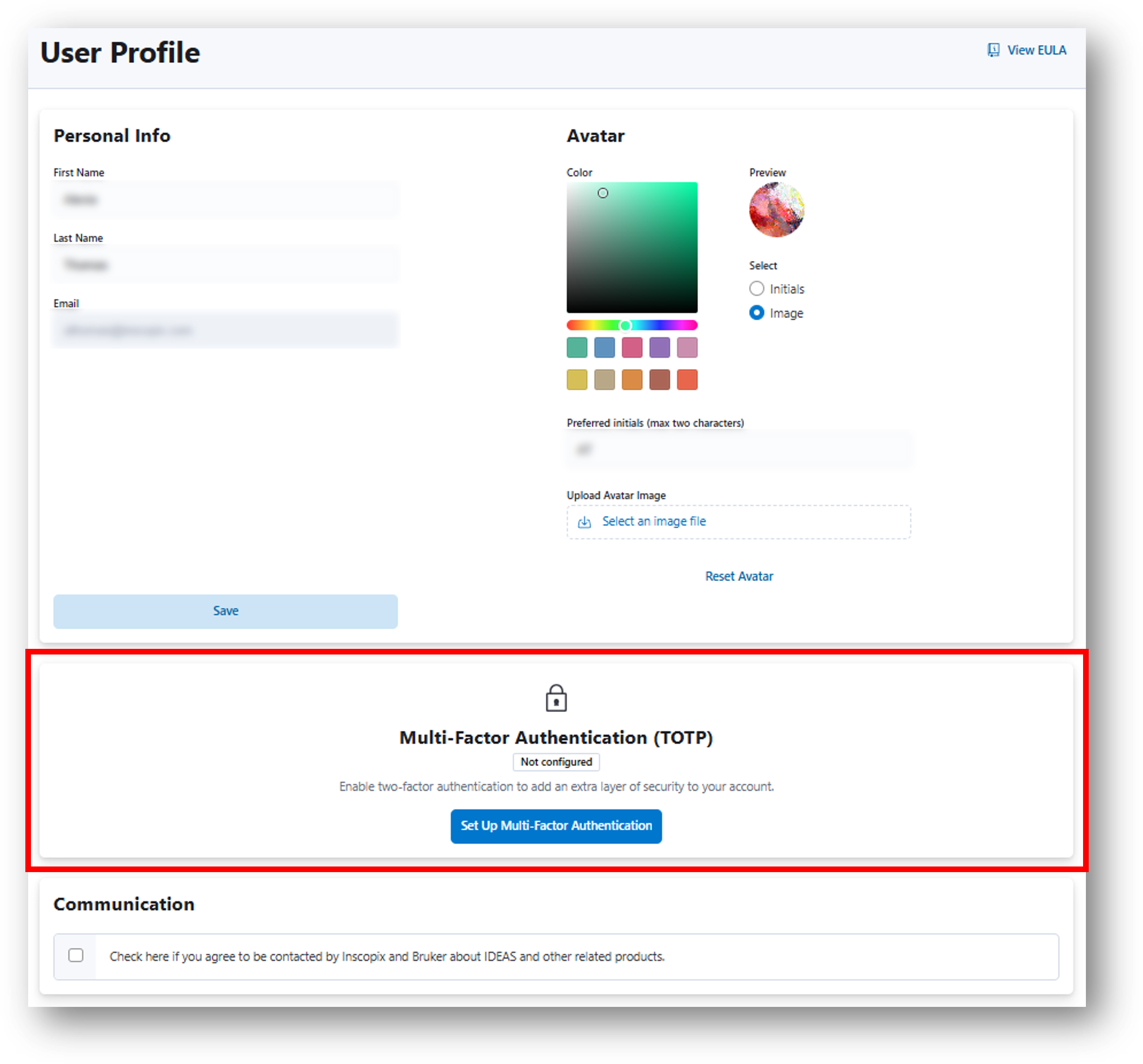
Navigate to your profile and click Set Up Multi-Factor Authentication
-
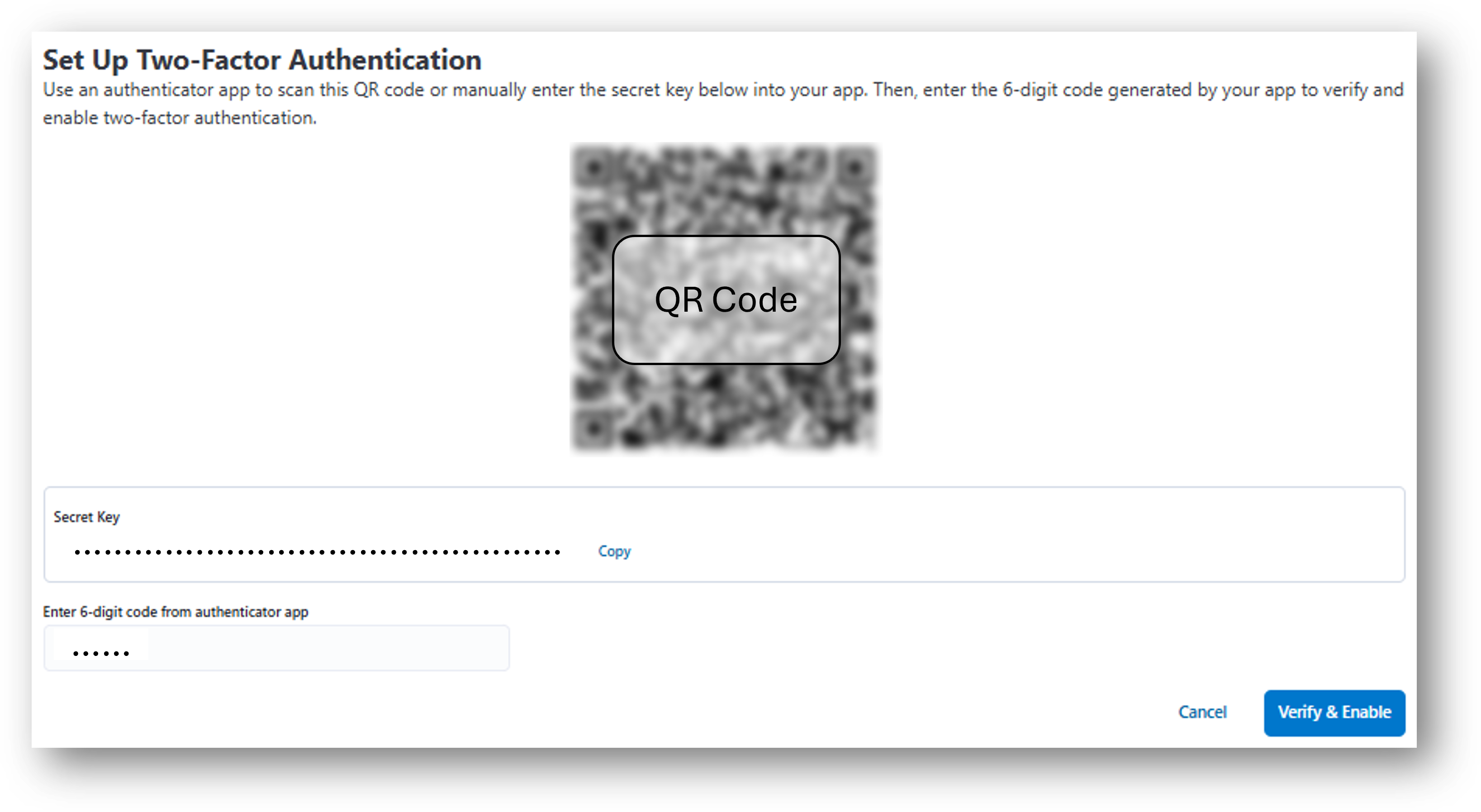
You'll see a QR code that you can scan with an authenticator app on your phone. Alternatively, copy the Security Key and enter it in your authenticator app.
- Enter the 6-digit code from the authenticator app and click Verify & Enable to confirm it works.
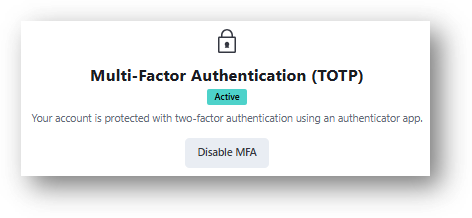
Once verified, you'll see a confirmation that the MFA is active.
Using MFA to log in to IDEAS
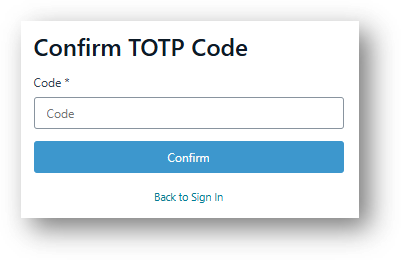
After entering your email and password, you'll be prompted for the 6-digit code from your authenticator app. Enter the code and click Confirm to enter IDEAS.
Using MFA to log in to IDEAS Command Line Tool (CLI)
If MFA is enabled on your IDEAS account, you will be prompted for the 6-digit code from your authenticator app when you run the CLI.
- If you haven't yet configured the CLI, refer to the documentation on configuring the CLI. When you run
ideas configure, you will be prompted for your TOTP code. - If you've previously configured the CLI, you will be prompted for your TOTP code the next time your session expires.
If you have a use-case for programmatic use of the CLI in an environment where the TOTP cannot be provided, please contact Support (support.inscopix@bruker.com) for more options.
MFA and Direct Data Transfer from IDAS to IDEAS
Currently MFA is not supported when directly uploading data from IDAS to IDEAS. To use the direct data transfer feature from IDAS, MFA for your IDEAS user account must be turned off.
Notes
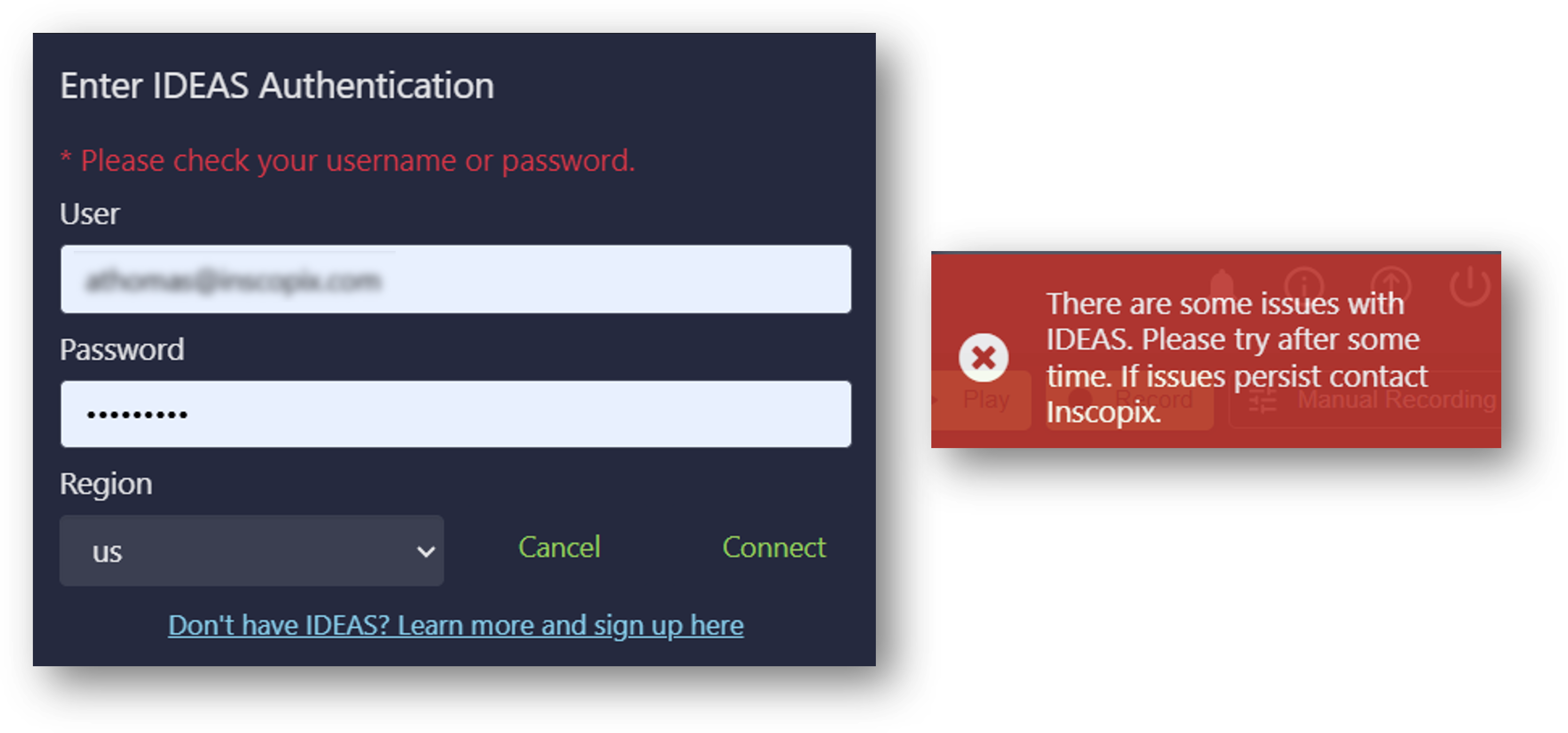
- If you try to log in to IDEAS from IDAS while MFA is active for your user profile, you will see a message to check your username or password (see left panel image). Please turn off MFA under your profile to log in from IDAS.
- If you were previously logged into IDEAS from IDAS and subsequently turn on MFA, you will received an error in IDAS when trying to select an IDEAS account/project for uploading files (see right panel image).
Turning Off MFA
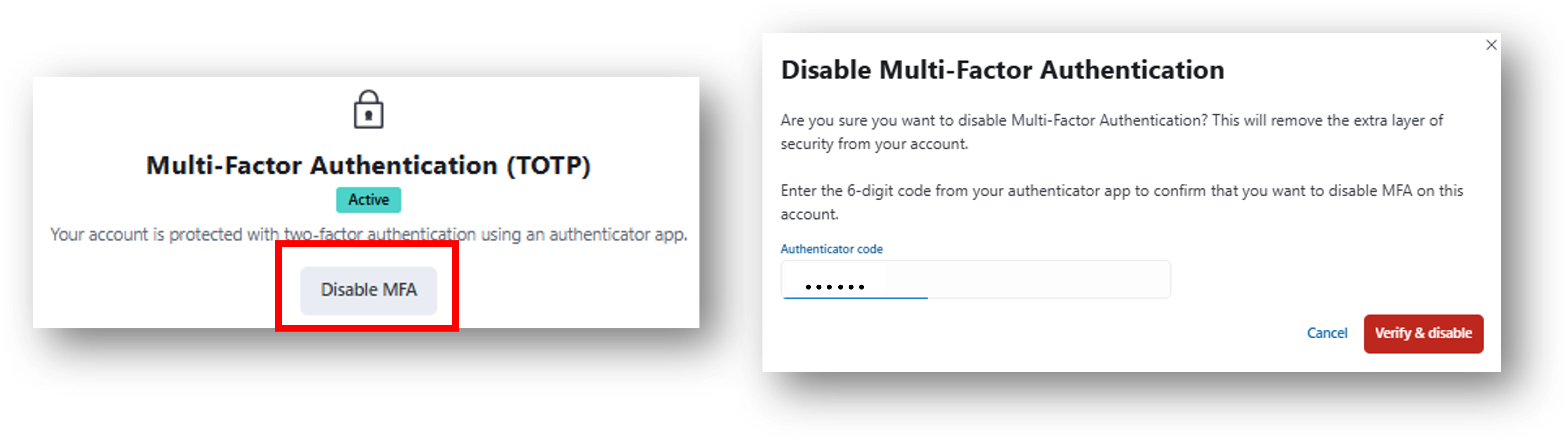
If MFA has already been enabled for your account, it can be disabled on your profile page by clicking Disable MFA (you will be prompted for the 6-digit code from your authenticator app).